
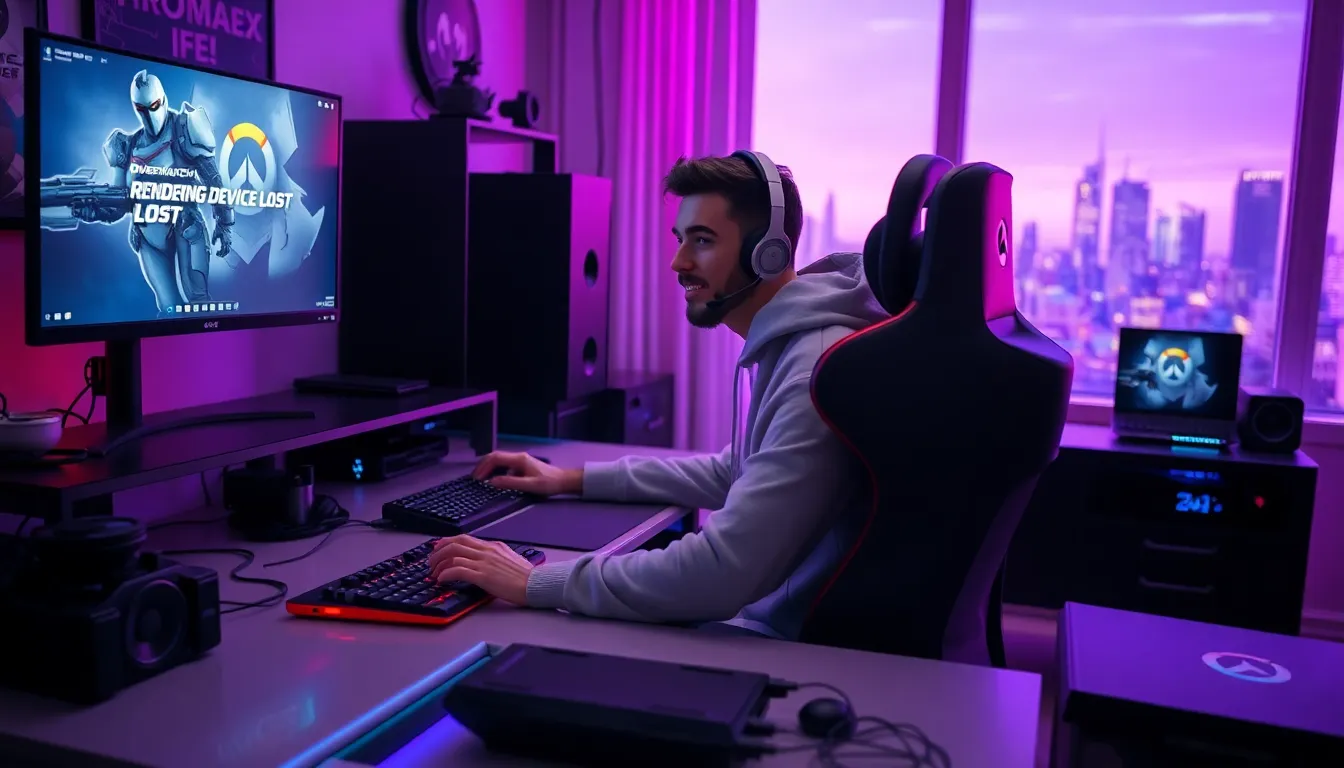
Have you ever been mid-game in Overwatch, only to be inexplicably greeted by a “rendering device lost” error? Talk about a mood killer. It’s like that friend who continually interrupts your deep conversation to ask for a snack. Frustrating, right? This error may leave many gamers scratching their heads, and while it can feel like a personal affront from the gaming gods, there’s good news. Understanding why it happens and how to fix it can get you back into the action without too much hassle. Let’s jump into the world of rendering device loss, explore the causes, and arm you with solutions.
Understanding the Error
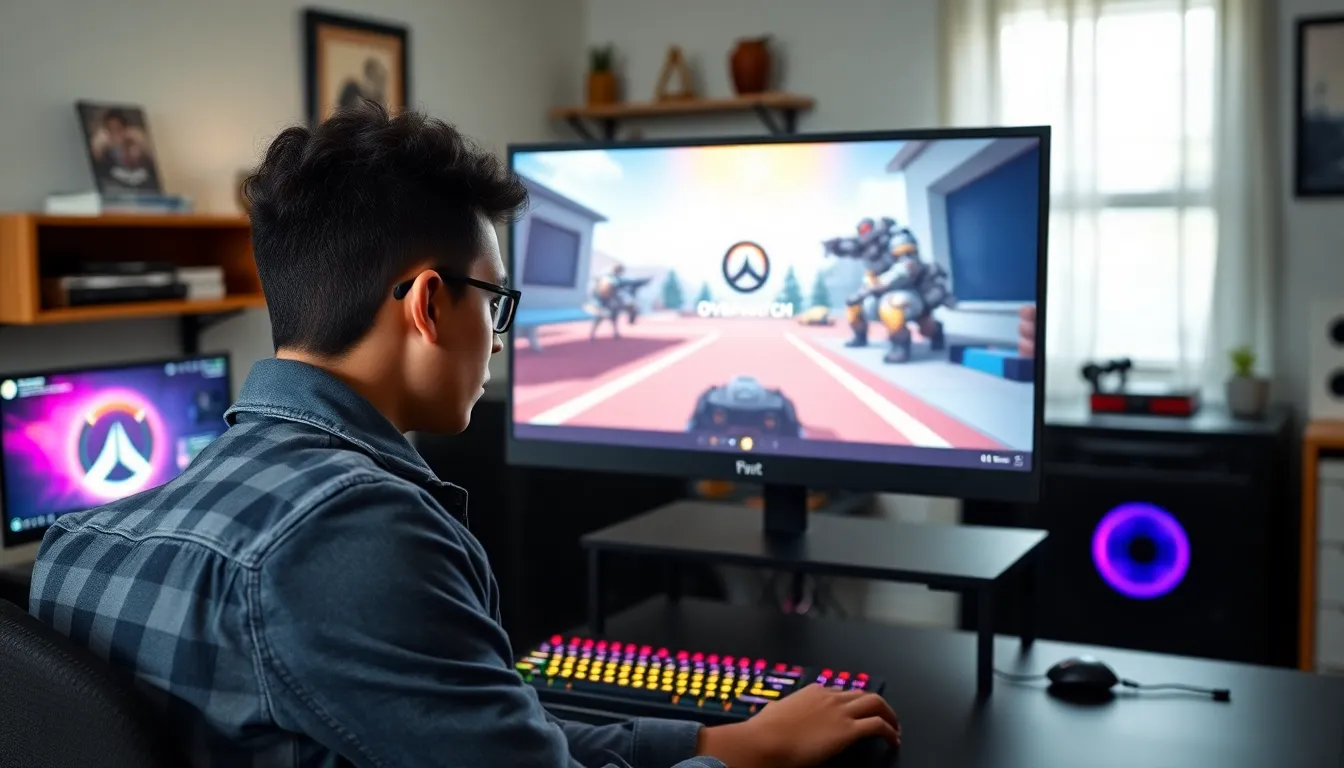
The “rendering device lost” error in Overwatch essentially signals a communication breakdown between your graphics card and the game itself. This disconnect can pop up at the most inconvenient times, impacting your gaming experience when you least expect it. For many, it manifests as a sudden screen freeze, followed by a head-scratching message. This error can occur on various platforms, disrupting the smooth gameplay Overwatch is known for. Recognizing the nuance of this error is step one in restoring your victorious gaming sessions.
Common Causes of Rendering Device Loss
Several factors can trigger a rendering device lost error. Here are a few common culprits:
- Overheating of the Graphics Card: Just like you, your graphics card needs to cool down sometimes. If it’s overheating, it might lose its connection, leading to this frustrating error.
- Outdated Drivers: Keeping your graphics drivers updated is crucial. Much like your favorite restaurant’s menu, if it stays static for too long, you might find yourself missing out on some delicious upgrades.
- Incompatibility with Overwatch Updates: Game updates can sometimes bring unexpected issues, especially if your hardware isn’t up to date or compatible with the newest version.
- Power Supply Problems: If your system isn’t getting enough juice, it might drop the connection to your graphics card. Think of it as trying to use your toaster when half the outlets are out.
- Corrupted Game Files: Sometimes it’s not you, it’s the game. Corrupted files can disrupt the way Overwatch interacts with your hardware.
Being aware of these causes is the first step to combating the pesky error.
Impact on Gameplay Experience
The impact of rendering device loss on gameplay can feel like being stuck in a traffic jam on your way to a concert. It’s frustrating and delays the excitement. Players may experience:
- Frustration: Nothing tarnishes an epic moment than suddenly being booted out of the action.
- Reduced Performance: Frequent error occurrences can lead to lower overall performance in-game and diminished enjoyment.
- Competitive Edge: For those diving into ranked matches, a loss can affect rankings and overall experience in an ultra-competitive environment.
So, resolving this error is essential not just for the sake of a smooth gaming experience but also for maintaining motivation and enjoyment.
Troubleshooting Steps
When faced with a rendering device lost error, there are several steps players can take to troubleshoot the issue:
Adjusting Graphics Settings
Start with the in-game settings. Lowering graphics settings may alleviate stress on your graphics card. Disabling high-resolution textures can also help if you are encountering frequent dropouts.
Updating Drivers and Software
An out-of-date driver can spell disaster. Make sure all graphics drivers are current by visiting the manufacturer’s website. Keeping your operating system up-to-date can also help eliminate compatibility issues.
Verifying Game Files
If nothing else works, verifying the integrity of the game files can be a lifesaver. Steam or Blizzard clients have built-in options to check for corrupted files and replace them if necessary. This simple step can often solve deeper-rooted problems.
Hardware Considerations
Sometimes, the solution may not lie solely in software. Players should also consider their hardware. Here are a few considerations:
- Cooling Systems: Ensure your graphics card has adequate cooling. Additional fans or cooling pads can help prevent overheating issues that lead to device loss.
- Power Supply Capacity: Confirm that your power supply unit (PSU) can handle your graphics card’s demands. An underpowered card may lead to performance drops.
- System Components: Aging hardware can struggle with modern gaming demands. If your GPU is several generations behind, it might be time to think about upgrades.
When to Seek Professional Help
If you’ve tried all the DIY fixes and you’re still stuck facing that dreaded rendering device lost error, it might be time to call in the experts. Signs it’s time for professional help could include:
- Persistent issues even though troubleshooting
- More hardware failures cropping up
- Suspected hardware damage or failure
Consulting a professional can save time and potentially keep costs down by addressing issues before they escalate.